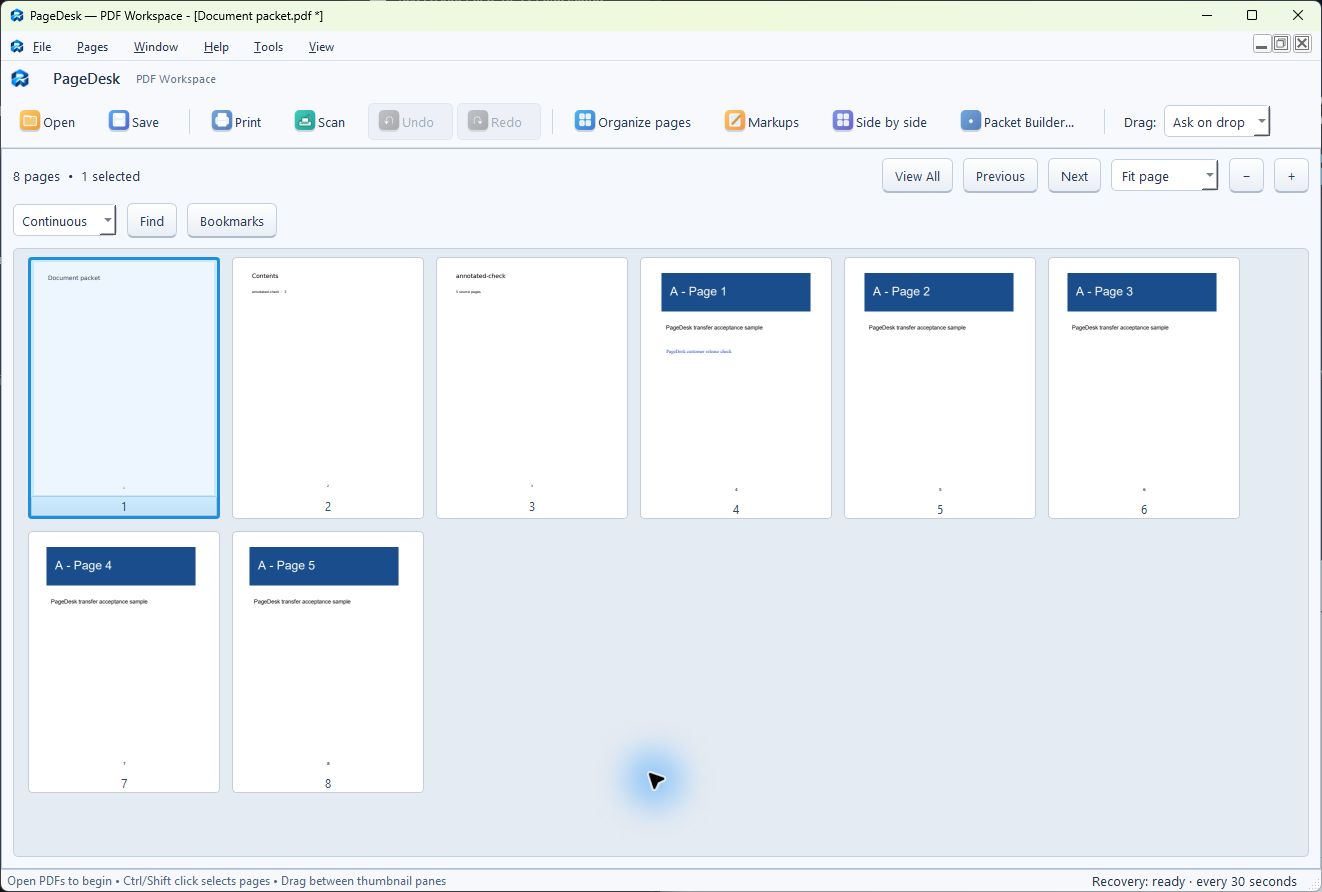
How to combine and reorder PDFs on Windows with PageDesk
Create a finished PDF packet from separate documents, choose the page order and save a separate copy. Includes a narrated demo and free practice PDFs.
Meet PageDesk · Windows PDF workspace
Read a long PDF, put its pages in order, and turn separate files into a finished packet—all in one desktop workspace.
Windows 11 x64 · One user · Local document processing
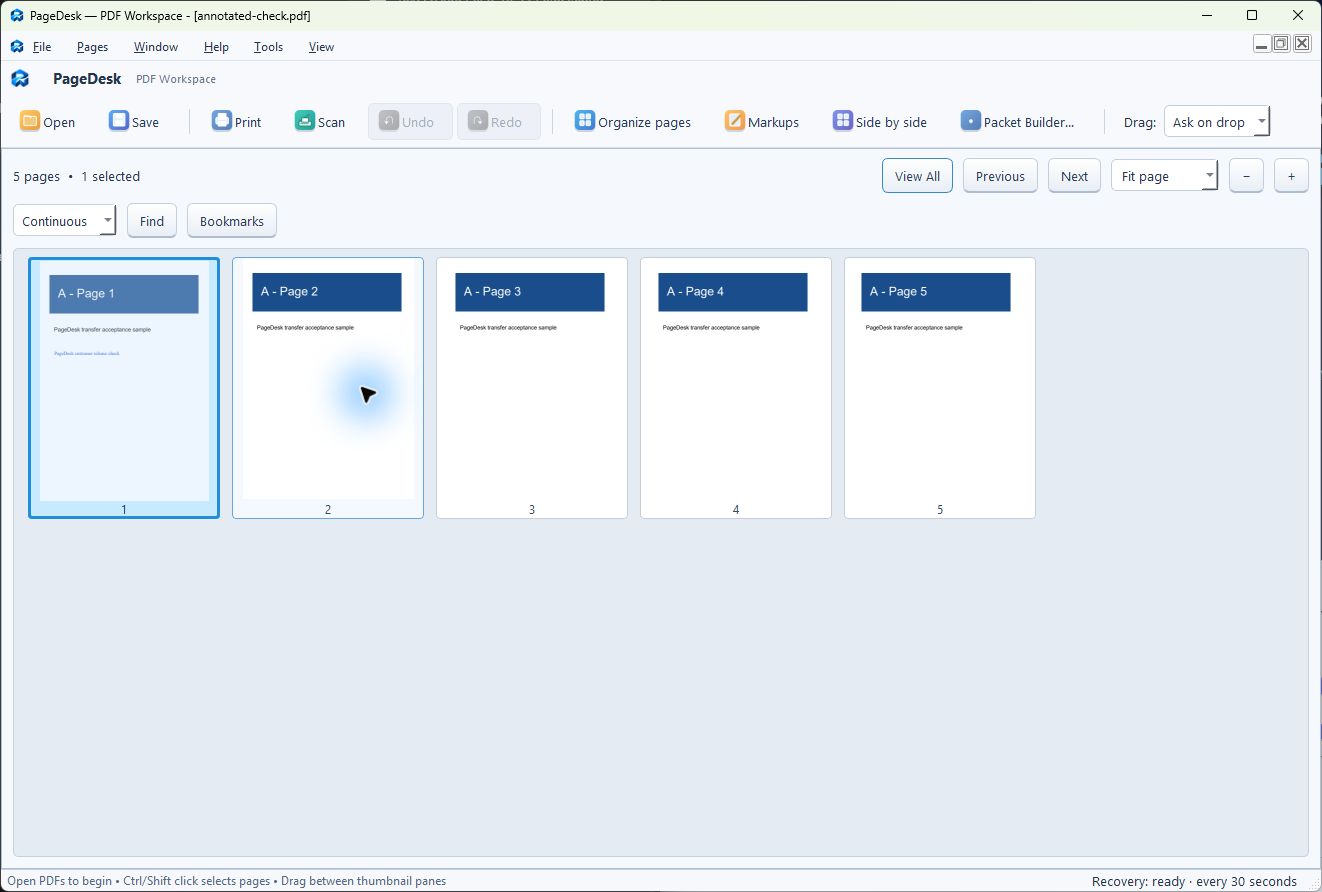
43 seconds inside PageDesk
Open two PDFs, work side by side, copy and reorder a page, then save and reopen the result.
Narrated, captioned demonstration recorded from PageDesk’s actual application interface using synthetic files. No customer information. This is a scripted walkthrough of the application, not a recording of a customer session.
Open a three-page project overview. Move to the next page in continuous reading. Open a review checklist beside it. Return to the page overview, copy the checklist into the project, and move it into the second position. Save a separate four-page handoff PDF and reopen it to review the result.
Start with your next PDF task
Create a finished PDF packet from separate documents, choose the page order and save a separate copy. Includes a narrated demo and free practice PDFs.
Recognize text in an image-only PDF with PageDesk OCR on Windows, then verify the result before sharing. Watch the narrated workflow.
Review a PDF with comments, highlights and a visual signature in PageDesk. Save a separate copy and verify the results with a narrated guide.
From first page to finished packet
Keep related documents together and move from reading to organizing to preparing a copy for someone else.
Use continuous, single-page or two-page views. Find selectable text, use bookmarks, and bring documents side by side.
Copy, move, reorder, rotate and extract pages. Add text, highlights and visual signatures, then save an edited copy.
Assemble document packets, add page numbering, fill PDF forms, compress files and export content for the next step.
See the actual workspace
Take a closer look at PageDesk’s everyday tools. These are real application screenshots using synthetic sample PDFs.
See the document as a set of pages, then put together the copy you actually need.
Keep a reference beside the document you are reviewing, without switching between separate windows.
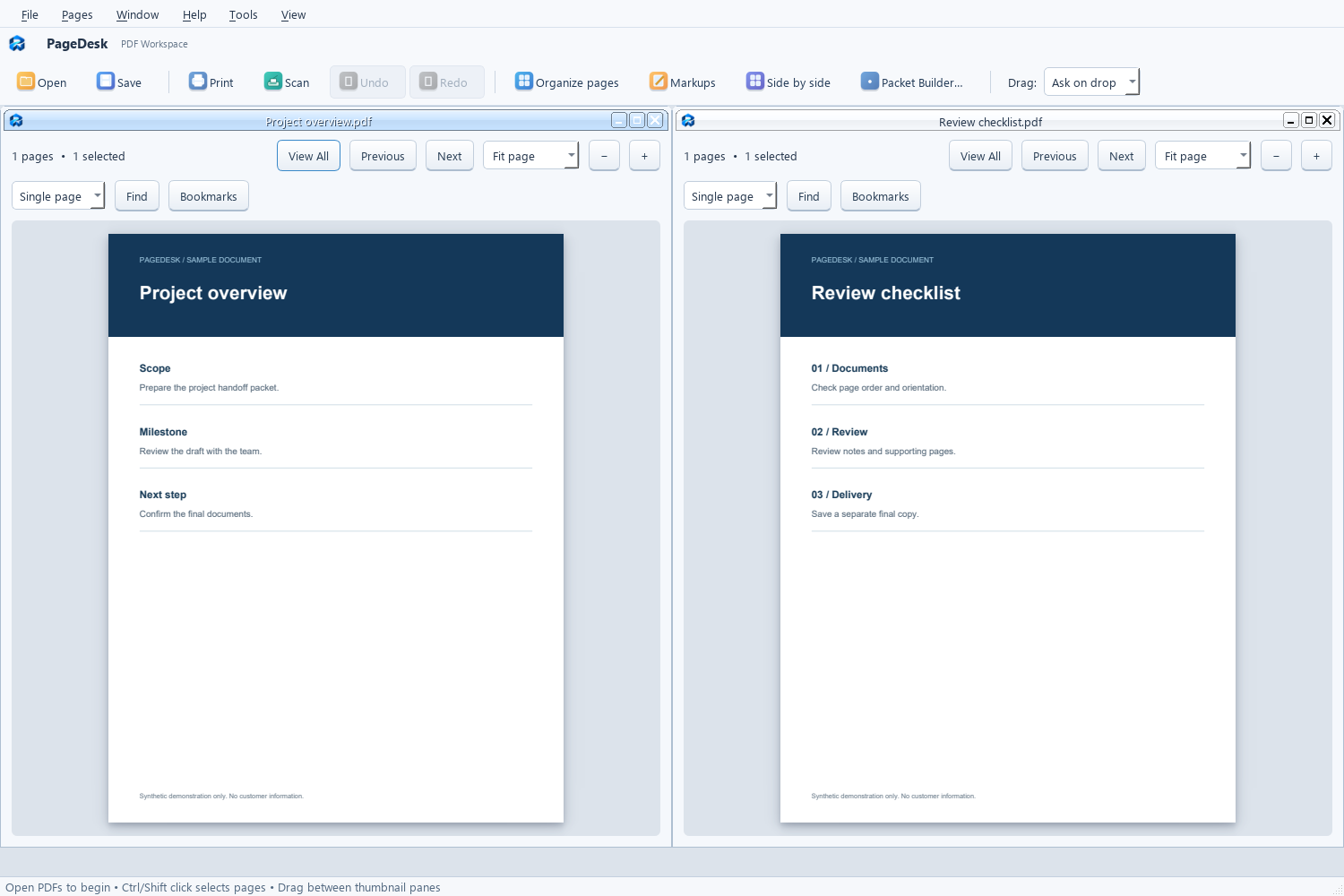
Add what a document needs without leaving the PDF workspace.
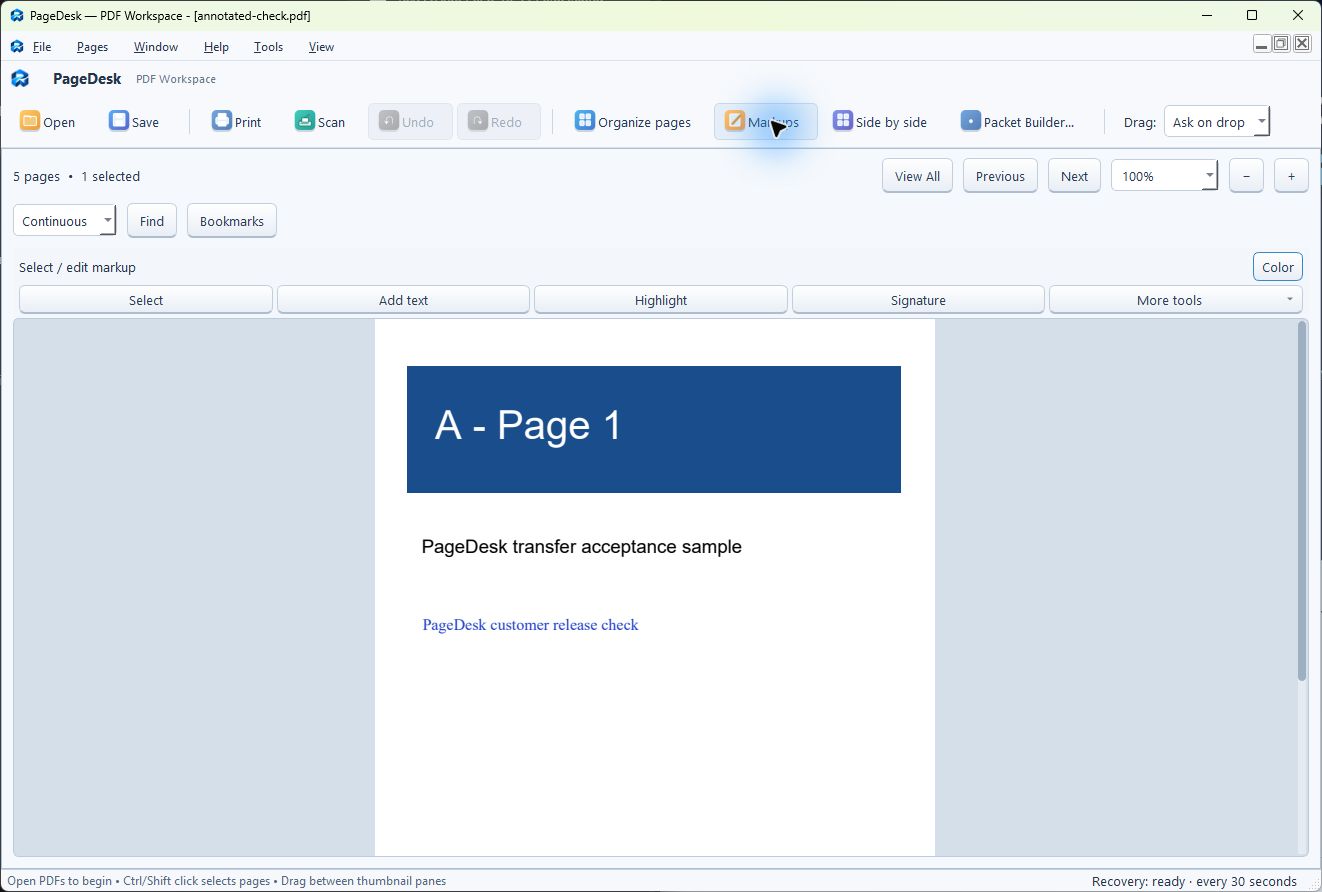
Choose source files and page ranges, arrange sections, and prepare a navigable document packet.
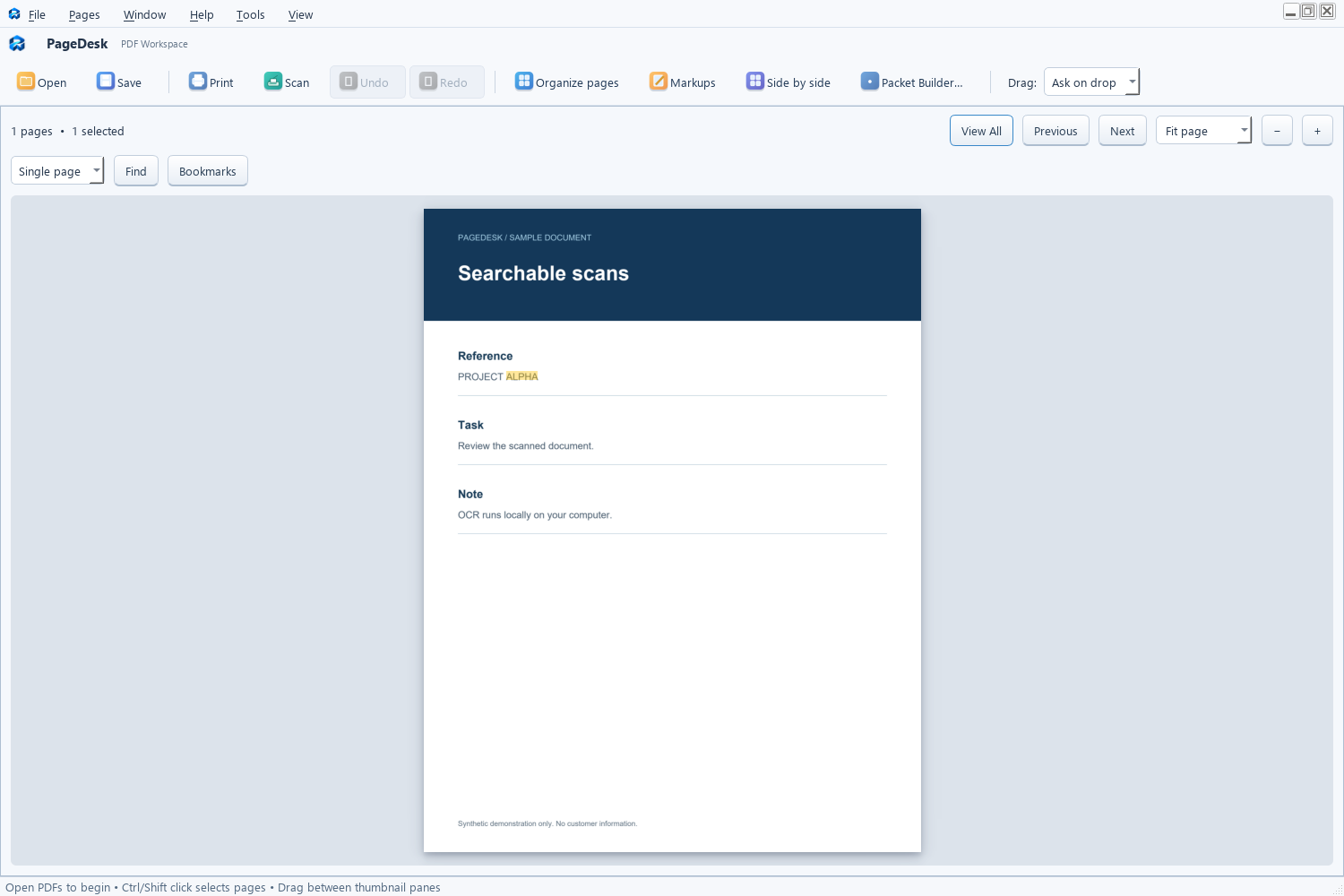
Recognize text in an image-only PDF, then use search to locate a word on the page.
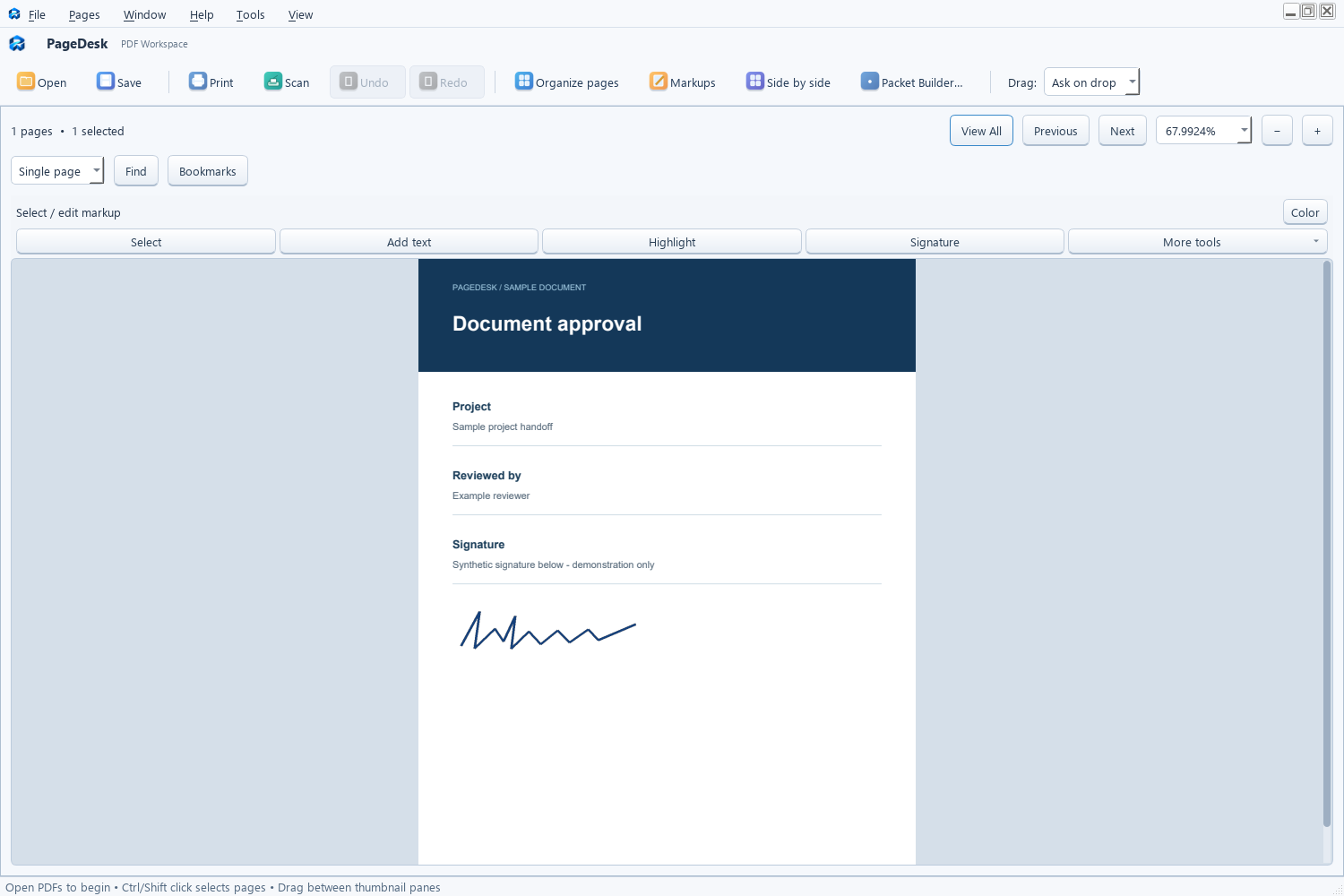
Add a visual signature to a PDF, adjust its placement, and save the result.
A desktop workflow, on your computer
Local OCR helps make scanned pages searchable. Use search and document comparison to help review the content, then verify the result yourself.
Local PDF processing & OCRNo built-in cloud document-processing service.
A choice of reading viewsContinuous scrolling, single page and two pages.
One-time purchase · $49.99One user. No subscription for this release.
Synced folders follow your provider’s settings. OCR and comparison can miss or misinterpret content; always review output.
More ways to get through the work
Go beyond reading without sending your PDFs to a built-in cloud processing service.
Read the getting-started guide →Local OCRRecognize text in scanned pages so you can search and review it.
Forms & markupsFill form fields, add notes and place visual signatures.
Document comparisonReview changes between versions, including OCR-assisted comparison.
Print & scanPrint selected pages or ranges and scan from compatible WIA/TWAIN devices, including feeder and duplex workflows.
Split & compressPrepare smaller files or divide a packet into separate outputs.
Reusable workflowsUse processing recipes, form profiles and page-review queues.
Exports & linked notesExport images or Office content and keep related passages connected.
New in version 0.30.0
Practical additions for turning documents into a packet you can use.
Read the release notes and feature limits →Photo cleanupAdjust a photographed page’s corners and perspective, then choose color, grayscale, clean paper or black-and-white output. Works on image-only pages; keep the original.
Nested bookmarksBuild sections and subsections, rearrange them by dragging, and save the outline with your PDF.
More Word export choicesChoose editable paragraphs and ruled tables, original lines, two-column paragraphs or page images. Review the result; complex layouts can vary.
Review suggested redactionsFind supported patterns or your own phrases, inspect each suggestion, then create a flattened copy. Suggestions can miss information, so review every page before sharing.
Resume a batchKeep a per-file job record, cancel safely and resume verified unfinished work. Keep the job file with its input and output files.
Protect pages during compressionExclude selected pages from image resampling. Shared images may also remain unchanged, and a requested file size may not be achievable.
Simple purchase. Useful everyday tools.
One-time purchase for one user. No subscription.
Your installer and getting-started guide are delivered through Gumroad. Any applicable tax is shown at checkout.
A few things to know
PDF processing and OCR run locally. Files you open or save in OneDrive, Dropbox or another synced folder follow that provider’s settings. Optional email handoff uses your own mail application. Read the privacy information.
It is a one-time license for one user. Maintenance updates made available for the purchased major release are included. Future major releases may be offered separately; no future feature or update schedule is promised.
Yes. The license allows personal or business use by the licensed user. Each additional user needs a separate license. Check your organization’s installation and document-handling policies.
For direct purchases, request a refund within 30 calendar days through Gumroad or email support with your order ID. Microsoft Store purchases follow that marketplace’s process and rules. Mandatory consumer rights remain unaffected.
Buy PageDesk on Gumroad for $49.99 USD. Microsoft Store availability will be announced separately.
The Windows installer and customer guide are available after purchase through Gumroad. This page does not offer a free trial download. See the 30-day refund policy before purchasing.
For installation questions or a reproducible problem, email s.villasenor@pathworksolutions.com. Include your PageDesk and Windows versions, the steps you followed and any error message.
Send sanitized examples only. Do not email passwords, saved signatures or confidential documents. No guaranteed response time is offered at launch.
Support & frequently asked questions →