Practical PDF guide · Windows
How to combine and reorder PDFs on Windows with PageDesk
A project packet often starts as several files: an overview, a checklist and a supporting page. Combining them is useful only if the final page order is right and the originals stay available. This guide walks through that workflow in PageDesk for Windows.
By Pathwork Solutions LLC · Updated October 26, 2026
Follow the workflow
Open the source PDFs
Open the project PDF and the PDF containing the page you want to add. If you are learning, use the synthetic practice documents below instead of customer files.
Select the pages to copy
Choose Organize pages, or press Ctrl+1, to return to the page overview. Select the source pages. Use Copy pages (Ctrl+C) to keep the source document intact.
Choose the destination
Activate the destination document and use Paste pages (Ctrl+V). Choose the insertion position. Check the destination page count after the copy.
Put the pages in order
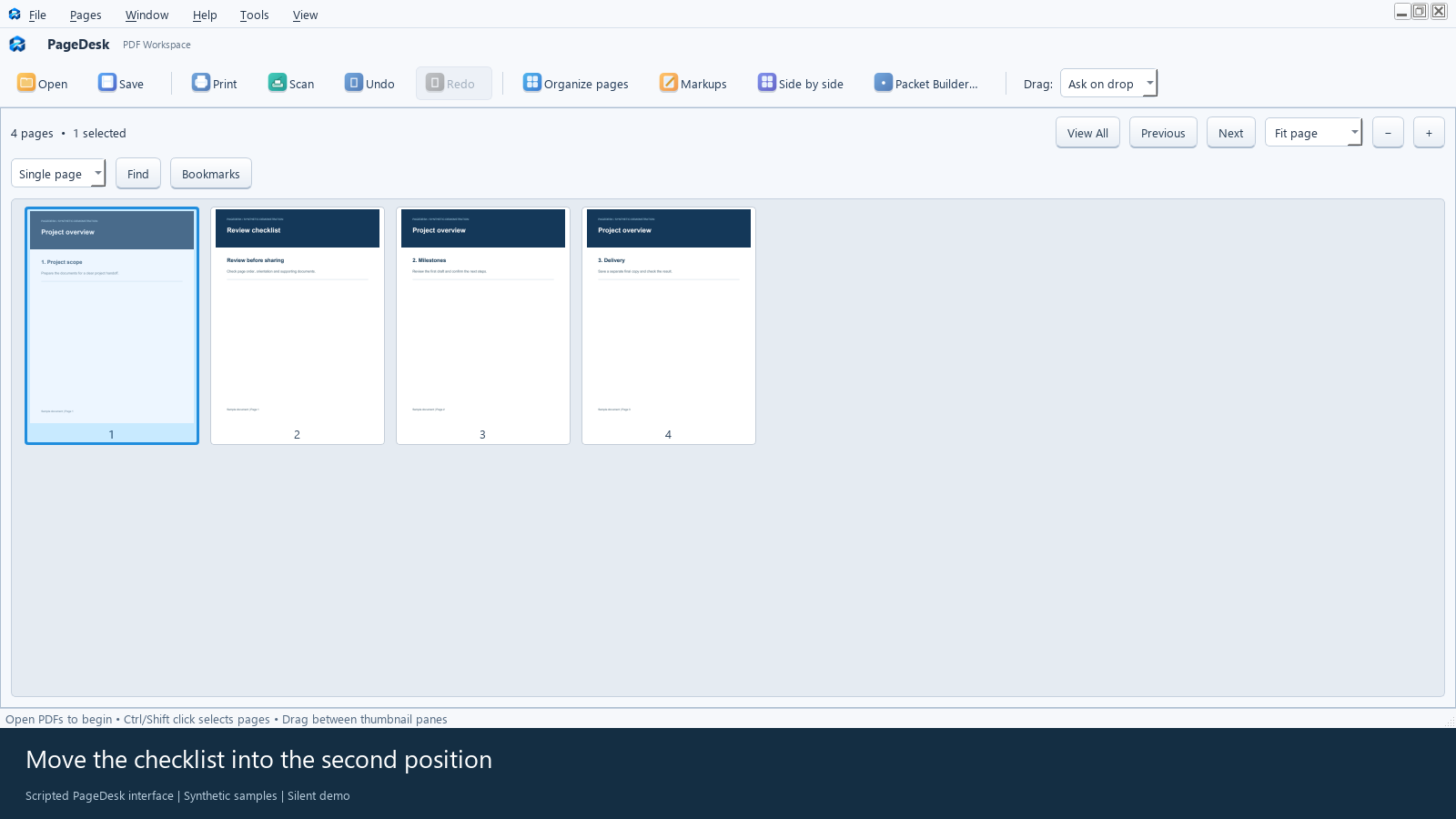
If the inserted page belongs elsewhere, select it and use Cut pages followed by Paste pages, choosing the new position. Undo is available if you choose the wrong position.
Save and inspect a separate result
Use Save As (Ctrl+Shift+S) with a new filename. Close and reopen the finished PDF. Review the first page, inserted pages and last page before sharing or printing.
Check the result
In the sample workflow, the three-page project plus the one-page checklist becomes a four-page PDF. The checklist belongs in the second position. Decide the expected page count before you begin.
Know the limits
A password-protected PDF may restrict copying or editing. Use an authorized, editable source. Combining pages does not automatically reconcile conflicting text between documents.
Practice with sample PDFs
Download the free practice documents (ZIP). Two synthetic PDFs and instructions. Software is sold separately; this is not a free installer or trial.
Common questions
Does copying remove the original page?
Copy pages keeps the source page. Cut and move operations change the source order. Use Copy when you want to preserve it.
Can I see both PDFs at once?
Yes. Side by side keeps two documents visible with independent page navigation. This is visual review, not an automatic difference report.
Use PageDesk for this workflow
PageDesk is a Windows PDF workspace for reading, organizing and marking up documents. It is $49.99 USD for one user, paid once for this release.
Windows 11 x64 tested. Installer is unsigned. No free trial is offered. Review the 30-day refund policy and license terms.